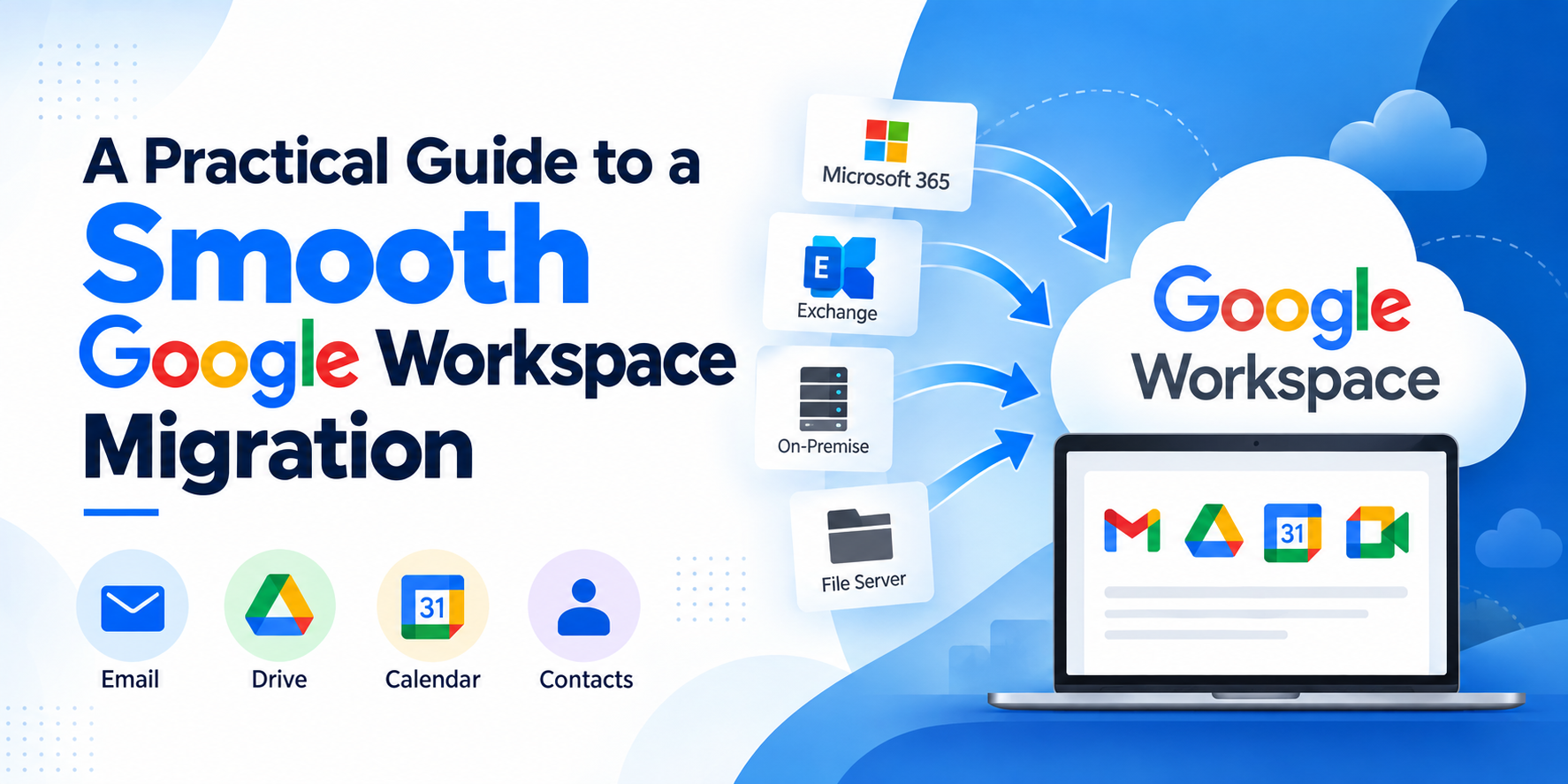
A Practical Guide to a Smooth Google Workspace Migration
Moving your business to Google Workspace can simplify email, file sharing, collaboration, communication, and day-to-day IT management. But migrating an organization from an existing email or collaboration platform to Google Workspace is more than simply creating new accounts and transferring emails.
A successful Google Workspace migration requires careful planning, data assessment, user mapping, security configuration, testing, and a well-managed transition.
Whether you are moving from Microsoft 365, Exchange, another cloud platform, on-premises email, file servers, or an existing Google Workspace environment, a structured migration approach can significantly reduce disruption and data-related issues.
At TechFuse MarkTech, we help businesses plan and manage Google Workspace environments with a focus on secure migration, minimal downtime, and organized data transfer.
What Is a Google Workspace Migration?
A Google Workspace migration is the process of moving an organization’s users, email, calendars, contacts, files, and other business data into Google Workspace.
Depending on your current environment, the migration may involve:
-
Gmail and email messages
-
Calendars and events
-
Contacts
-
Google Drive or other cloud storage
-
Shared files and folders
-
Microsoft Exchange or Microsoft 365 data
-
SharePoint or OneDrive data
-
File servers
-
User accounts and groups
-
File permissions and sharing relationships
Google Workspace provides migration tools that can support migrations from several source environments, including Microsoft Exchange, SharePoint/OneDrive, file shares, Box, and Google Workspace.
The important point is that migration should be treated as a project, not just a data transfer task.
Why Planning Matters Before Migration
One of the most common migration mistakes is starting the transfer before understanding the existing environment.
Before moving any data, your IT team should determine:
-
How many users need to be migrated?
-
How much email data exists?
-
How much file data needs to be moved?
-
Where is the data currently stored?
-
Which users have large mailboxes or Drive accounts?
-
Which shared folders are business-critical?
-
What permissions need to be preserved?
-
Which applications depend on the existing email system?
-
What is the preferred migration date?
-
How much downtime, if any, can the organization tolerate?
Google recommends scanning data before migration because the scan can help estimate the data volume, identify issues, distribute workloads, and identify large datasets that could otherwise become migration bottlenecks.
Step 1: Audit Your Existing Environment
Start with a complete inventory.
Create a list containing:
| Item | Information to Collect |
|---|---|
| Users | Name, email address, department |
| Mailbox | Size and number of messages |
| Drive/Files | Total storage and important folders |
| Groups | Existing mailing and security groups |
| Calendars | Shared and resource calendars |
| Contacts | Personal and shared contacts |
| Applications | Systems using email or SMTP |
| Domains | Primary and secondary domains |
| DNS | MX, SPF, DKIM and DMARC records |
| Security | MFA/2-Step Verification and admin access |
This inventory becomes the foundation of your migration plan.
Step 2: Decide What Should Actually Be Migrated
Not every piece of old data necessarily needs to move.
Before migration, classify your data into three categories:
1. Business-Critical Data
This may include:
-
Current emails
-
Active customer communications
-
Current project files
-
Important calendars
-
Operational documents
2. Historical Data
This may include:
-
Old emails
-
Archived projects
-
Previous employee data
-
Older documents
3. Unnecessary Data
This could include:
-
Duplicate files
-
Temporary files
-
Outdated documents
-
Unused accounts
-
Redundant archives
Cleaning up unnecessary data before migration can make the project easier to manage and reduce the amount of data that needs to be transferred.
Step 3: Prepare Your Google Workspace Environment
Before transferring data, configure the destination Google Workspace environment.
This can include:
-
Creating users
-
Creating organizational units
-
Configuring groups
-
Setting up aliases
-
Assigning licenses
-
Configuring Gmail
-
Configuring Google Drive
-
Configuring shared drives
-
Configuring Google Calendar
-
Setting security policies
-
Enabling 2-Step Verification
-
Configuring administrator roles
-
Preparing DNS records
For Google Workspace Migrate, Google requires appropriate administrator access and target users/licenses, while services such as Gmail and Drive need to be enabled for the relevant users.
Don’t Forget DNS
Email migration is not complete simply because the mailbox data has been transferred.
Your DNS configuration also needs to be reviewed.
Important records can include:
-
MX
-
SPF
-
DKIM
-
DMARC
-
Domain verification records
A properly planned DNS transition helps ensure that incoming and outgoing email works correctly after the cutover.
Step 4: Create User and Identity Mapping
One of the most important parts of a migration is correctly connecting users in the old environment with their corresponding Google Workspace accounts.
For example:
Old account:
john@company.com
New account:
john@company.com
Or, during a domain change:
Old account:
john@oldcompany.com
New account:
john@newcompany.com
Google Workspace Migrate uses identity mappings to associate users, groups, calendar resources, and other identities between the source and target environments. These mappings can help preserve sharing relationships and references to users.
Incorrect mapping can result in:
-
Data going to the wrong account
-
Permission problems
-
Duplicate data
-
Missing sharing relationships
-
Migration failures
Therefore, user mapping should be reviewed carefully before starting the main migration.
Step 5: Start With a Test Migration
Never make your entire organization the first migration test.
Select a small group of users first.
A good pilot group can include:
-
IT administrators
-
A few regular employees
-
Users with different mailbox sizes
-
Users who heavily use Google Drive
-
Users who rely on shared calendars
-
Users with complex sharing permissions
The goal is to identify problems before they affect the entire organization.
During the pilot, verify:
Gmail
-
Old emails are available
-
Attachments open correctly
-
Labels/folders are handled as expected
-
Search works correctly
-
New emails are delivered
Google Drive
-
Files are available
-
Folder structures are correct
-
Sharing permissions work
-
Shared drives behave as expected
Calendar
-
Events are present
-
Recurring events work
-
Shared calendars are accessible
-
Calendar permissions are correct
User Experience
-
Users can sign in
-
Gmail works on desktop and mobile
-
Drive synchronization works
-
Google Meet works
-
2-Step Verification works
Step 6: Use a Phased Migration for Larger Organizations
For larger organizations, migrating everyone simultaneously may not be the most practical approach.
Instead, divide users into manageable migration phases.
For example:
Phase 1 — IT & Administrators
10 users
Phase 2 — Early Adopters
25 users
Phase 3 — Sales & Marketing
50 users
Phase 4 — Operations
100 users
Phase 5 — Remaining Users
150 users
Google recommends phased migrations for many enterprise environments because phases allow organizations to divide large datasets into manageable groups and transition users according to a planned timeline.
A phased approach also gives your IT team the opportunity to identify and resolve issues before the next group is migrated.
Step 7: Plan for Large Mailboxes and Large Data Sets
Not all users create the same migration workload.
One employee might have 5 GB of email, while another may have hundreds of gigabytes of data.
Large users can become migration bottlenecks.
Identify your data-heavy users before migration and consider distributing them across migration phases.
Google’s migration guidance specifically recommends using scans to identify large datasets and optimize workload distribution.
For large Drive migrations, organizations should also consider how data will be distributed across users and shared drives.
Step 8: Protect Your Data During the Migration
Data protection should be a priority throughout the project.
Before starting:
-
Confirm that source data is available.
-
Maintain appropriate backups where required.
-
Restrict unnecessary administrative access.
-
Document the migration configuration.
-
Verify user mappings.
-
Test the migration process.
-
Monitor migration logs.
-
Keep a rollback or contingency plan.
You should also avoid allowing users to make uncontrolled changes to data that is actively being migrated.
This becomes particularly important during delta migrations. Google notes that Google Workspace Migrate does not provide conflict detection or merging for certain migration scenarios, meaning changes made in the destination during a delta migration can potentially be lost.
Step 9: Perform the Final Delta Migration
The initial migration is usually performed before the final cutover.
However, users may continue receiving emails and modifying files while the migration is in progress.
This creates a gap between the original migration and the final go-live.
A delta migration can be used to transfer newly added or modified content after the main migration.
For example:
Initial migration:
September 10
Users continue working:
September 10–20
Final delta migration:
September 20
Google Workspace go-live:
September 21
Google describes delta migration as a process that identifies new or modified content after the main migration and transfers it before the transition to Google Workspace.
The final cutover should be carefully scheduled to minimize disruption.
Step 10: Update DNS and Complete the Cutover
Once the migration is ready for production, your team can proceed with the final transition.
Typical activities include:
-
Complete the final migration.
-
Run the final delta migration where applicable.
-
Update MX records.
-
Verify SPF.
-
Configure or verify DKIM.
-
Configure DMARC.
-
Confirm Gmail delivery.
-
Test external email delivery.
-
Test internal email delivery.
-
Confirm user access.
-
Monitor email flow and authentication.
DNS changes can take time to propagate, so your migration plan should account for DNS behavior and verification.
Step 11: Validate Everything After Migration
Don’t consider the project complete immediately after the cutover.
Perform a post-migration audit.
Gmail Checklist
-
Users can send emails
-
Users can receive emails
-
Attachments work
-
Search works
-
Labels/folders are available
-
Important historical messages are present
Drive Checklist
-
Files are accessible
-
Shared folders work
-
Shared drives work
-
Permissions are correct
-
Important documents open correctly
Calendar Checklist
-
Meetings are present
-
Recurring meetings are correct
-
Shared calendars work
-
Calendar permissions are correct
Security Checklist
-
2-Step Verification is configured
-
Admin roles are reviewed
-
Recovery options are configured
-
SPF is correct
-
DKIM is enabled
-
DMARC is configured
-
Suspicious login activity is monitored
Common Google Workspace Migration Mistakes
1. Migrating Without an Inventory
Without knowing your users and data volume, it becomes difficult to estimate migration time and resources.
2. Skipping the Pilot
A pilot migration can expose problems before they affect hundreds of users.
3. Incorrect User Mapping
Incorrect identity mapping can cause permission and data-access problems.
4. Ignoring DNS
Moving mailbox data without properly planning DNS can result in email delivery problems.
5. Migrating Everything at Once
Large organizations can benefit from phased migration instead of attempting a single massive cutover.
6. Forgetting Shared Data
Personal Gmail and My Drive data are only part of the migration. Shared folders, shared drives, groups, calendars, and permissions also need attention.
7. Not Planning the Cutover
The final migration should have a clearly defined date, responsible team members, communication plan, and validation checklist.
Google Workspace Migration Checklist
Before declaring your migration complete, review this checklist:
Planning
-
Migration scope defined
-
Users inventoried
-
Data volume estimated
-
Migration timeline created
-
Pilot users selected
Google Workspace Setup
-
Users created
-
Licenses assigned
-
Organizational units configured
-
Groups configured
-
Security policies configured
-
Services enabled
Migration
-
User mapping completed
-
Data mapping completed
-
Pilot migration completed
-
Migration issues reviewed
-
Migration phases completed
-
Final delta migration completed
DNS & Email
-
MX records updated
-
SPF verified
-
DKIM configured
-
DMARC configured
-
Internal email tested
-
External email tested
Post-Migration
-
Gmail verified
-
Drive verified
-
Calendar verified
-
Shared drives verified
-
Permissions verified
-
Users informed
-
Migration reports reviewed
How TechFuse MarkTech Can Help With Google Workspace Migration
A Google Workspace migration involves much more than transferring emails.
It requires planning, administration, security configuration, data mapping, testing, migration execution, and post-migration validation.
TechFuse MarkTech can help businesses with the complete Google Workspace migration lifecycle, including:
-
Google Workspace planning
-
User and domain setup
-
Email migration
-
Google Drive migration
-
Microsoft 365/Exchange migration
-
Google Workspace-to-Google Workspace migration
-
User and identity mapping
-
DNS configuration
-
SPF, DKIM and DMARC setup
-
Security configuration
-
Migration testing
-
Phased migration
-
Final cutover
-
Post-migration support
For organizations with large numbers of users or significant amounts of business data, having an experienced migration team can help reduce operational disruption and make the transition more structured.